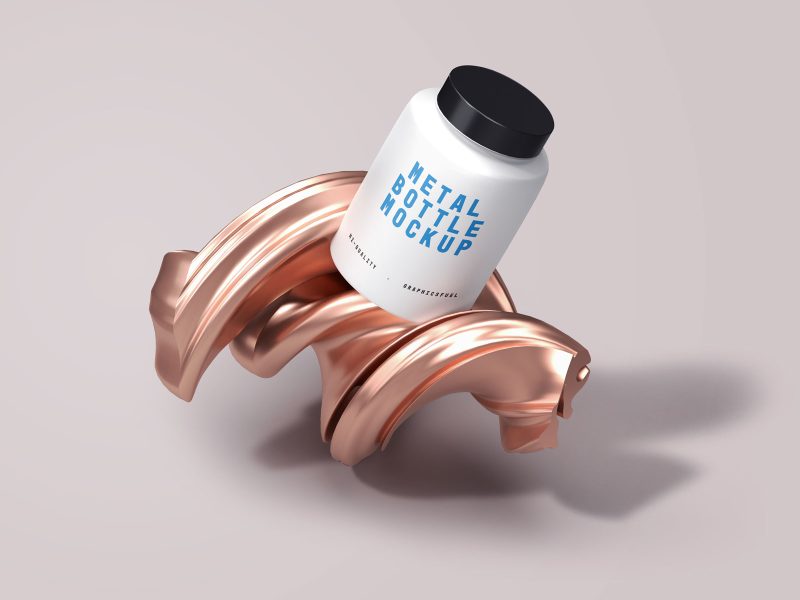
Today’s Photoshop freebie download is a set of PSD text styles in Photoshop. This is a unique metal text style for a shiny steel, gold and chrome text effect. Download the PSD file and check out the text styles applied for each text to bring out the resultant effect. Along with the PSD file, .ASL file is also included so you can quickly apply the effects to your desired text.
1) Instructions on how to use the text styles
To use these text effects, all you need to do is to copy the layer style by right-clicking on a text layer and click “Copy Layer Style” and then apply the effect to your own text by right-clicking on your text layer and click “Paste Layer Style”. Increase or reduce your font size until you get the correct result of the effect, or you can adjust the layer styles to see the desired result.
2) How to install the .ASL file
Copy the .asl file (metal-styles-graphicsfuel.asl) to Program Files\Adobe\Adobe Photoshop \Presets\Styles
Preview of the PSD Text Styles

Author: Rafi
File Resolution: 800px
Format: Photoshop & .ASL
Keywords: PSD Text Styles
Size: 3.53 MB (zip)
Download PSD Text Styles PSD & .ASL files
Related Posts :
- Christmas Photoshop text styles
- Free Photoshop party text style
- Gold and glass text effects (PSD & .ASL)
- Photoshop retro text styles


30 Comments-
Erick
March 20, 2013
-
karthimx
February 10, 2012
-
Shar Stavropol
January 4, 2012
-
shamshad
August 1, 2011
-
Brett Widmann
January 21, 2011
-
Paul Aitchison
October 23, 2010
-
zothen
October 22, 2010
Really thank you!! You facilitate my life a lot!
Great text effect. Helpful to lean the style.
It is beautifully looked styles on metal with punching. It gives additional effect visual. I think, that it is possible to use other structure also.
Great! Tutorial This a very usefull tutorial. Thanks
This is a really nice style. This could be used for some really cool effects on web sites or posters.
Great text styles and simple installation instructions. Thanks.
You may want to adjust your instructions for noobs!
By default, “Copy Layer Style” is greyed out and not selectable! So I presume that some other step is required…
Trackbacks/Pingbacks